

Google Maps in the Classroom: 5 Powerful Ways to Teach Geography with AI
From immersive virtual field trips to student-led geospatial data analysis, new Google Maps features allow teachers to design inquiry-driven projects that connect geography, STEM, and social studies.

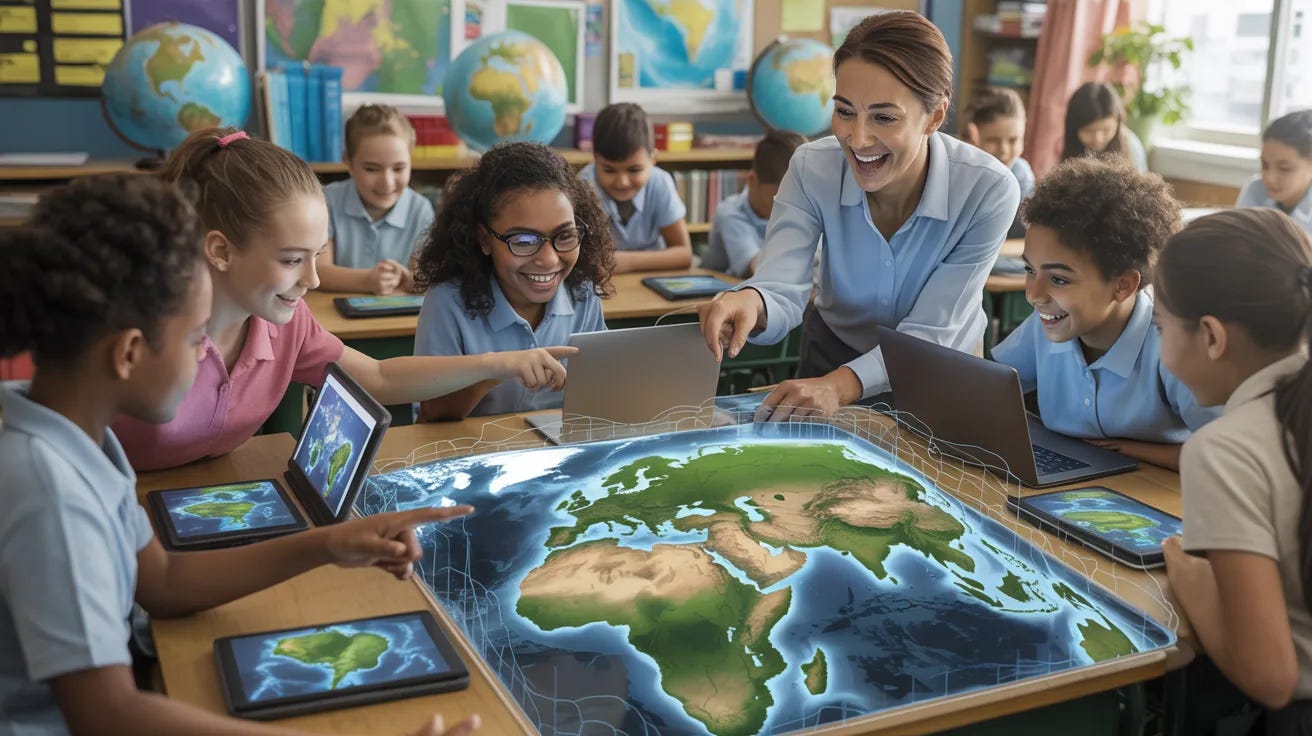
My lifelong fascination with maps began when I was six — the year my parents bought me a subscription to National Geographic. I tore off the wrapper of the first issue and was astonished when a map dropped from the magazine.
I raced to my bedroom, spread the map on the floor, and then spent a joyous hour examining every detail. Over the next decade I used a substantial portion of my meager chore money to buy older issues of the magazine in order to collect more maps. One bookstore near our home sold the maps for 25 cents each, which greatly expanded my collection.
My love of maps has not diminished in the decades since I first opened a copy of National Geographic. It has even been enhanced by the mobile technology that allows me to view maps, including satellite views, of anywhere on earth. My reading companion for both fiction and nonfiction is an iPad, usually open to a maps app for constant reference and fact-checking.
In early March, Google announced a major upgrade to its Maps app. I immediately turned my attention to the educational possibilities of this enhancement. What follows is an analysis of the new functionality, and a few suggestions for how you can use the tool to great effect in your classroom.
Getting Started with Classroom Use of Maps
Google Maps has evolved from a simple navigation tool into a sophisticated no-code geospatial platform. From a teacher’s perspective, the focus has shifted toward immersive learning and AI-assisted exploration, allowing students to engage with the world’s data in ways that were previously reserved for researchers.
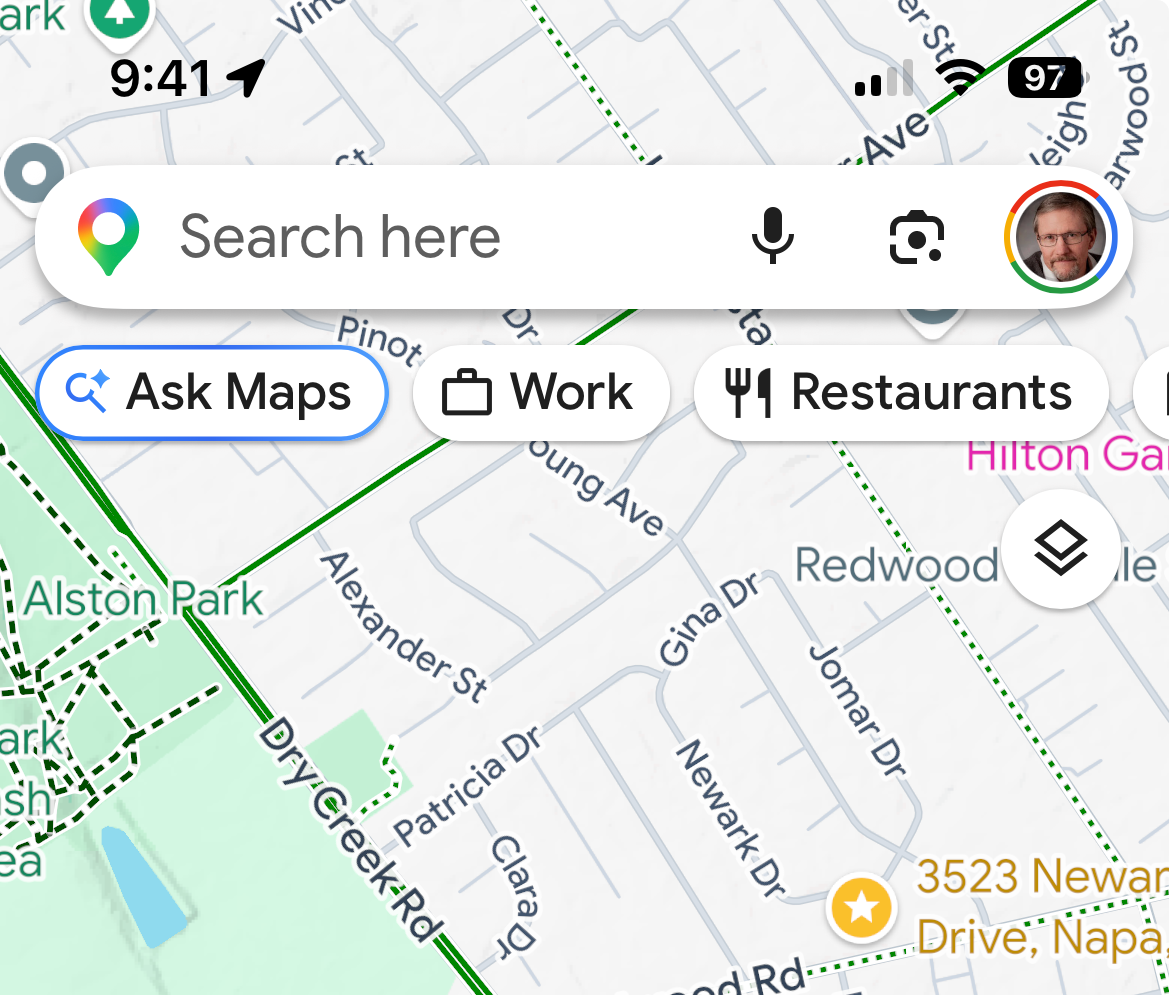
Google is using a staggered rollout of this functionality. On the mobile version of Maps you should see a button labeled “Ask Maps” (see screen grab); the web-based version of Maps did not display the same button when I published this piece on Substack.
Here is an overview of the most impactful new functionalities, framed through an educational lens:
1. Ask Google Earth: Natural Language Planetary Search
The most significant update for 2026 is the integration of Gemini directly into the map interface. Instead of simply searching for addresses, students can now ask Google Earth complex questions about the visible geography of a place.
The Education Lens: This transforms a search into an inquiry-based lesson. A student can ask, “Find all the coastal cities in Florida with visible mangrove forests,” or “Show me neighborhoods in Chicago with the least amount of tree canopy.” The AI scans satellite imagery and Street View to curate a shortlist of locations, allowing students to skip the search phase and move directly to environmental or sociological analysis.
2. Immersive View and 360° Time Travel
Google has expanded its Immersive View to thousands of landmarks and cities. This feature uses AI to combine billions of images into a photorealistic 3D model.
The Education Lens: Teachers can use this for Virtual Field Trips 2.0. Students can explore the Acropolis in Athens or the Great Wall of China and see how these sites look at sunrise versus sunset, or under different weather patterns. Furthermore, the updated Timelapse feature allows students to witness 40 years of planetary change (like melting glaciers or urban sprawl) in a high-resolution, interactive 3D environment, making the abstract concept of temporal change tangible.
3. Geospatial “No-Code” Analysis
Google Earth and Maps now allow for the direct import of large-scale datasets (like KML and GeoJSON) with a simple drag-and-drop interface. In effect, Google Maps has become a no-code GIS (Geographic Information System).
The Education Lens: This is a game-changer for STEM and social studies projects. Students can take public health data, local crime stats, or animal migration patterns and overlay them onto Google’s real-world canvas. By styling these layers—changing colors based on data density—students begin to think like data scientists, identifying critical gaps in their community (e.g., food deserts or a lack of EV infrastructure) to present evidence-based solutions to their local school boards or city officials.
4. Personalization & Special Needs Support
New updates have focused on accessibility, including voice-assisted navigation and simplified visual modes designed to reduce cognitive load.
The Education Lens: For students with speech delays or learning differences, the combination of visual 3D maps and AI-generated contextual labels helps bridge the gap between verbal instruction and spatial understanding. Research published in late 2025 shows that using these interactive maps can improve spatial reasoning skills by up to 30% for students with special needs, as it allows them to demonstrate knowledge through navigation and virtual pointing rather than just written reports.
5. Integration with Gemini for Education
Maps is no longer a standalone app; it is now fully integrated with Google Classroom and Gemini.
The Education Lens: A teacher can now use Gemini to instantly turn a specific Google Maps view into a Classroom-ready rubric (see below) or a set of suggested questions based on the geography being viewed. Students can also use the new Deep Research tool to generate research summaries that link directly to coordinates and Map Views they have discovered during their project work.
User Tip: After you update the version of Maps on your device, look for the “Ask Maps” button below the search bar. The same is true if you or your students are using the desktop version of Maps. Rule of thumb: The top search bar is for navigation; the Ask Maps button is for consultation.
Integrating With Google Classroom
The integration between Google Maps and Google Classroom has become seamless, allowing for Live Map assignments that update as students explore.
Here are four high-impact ways to embed these activities into Google Classroom:
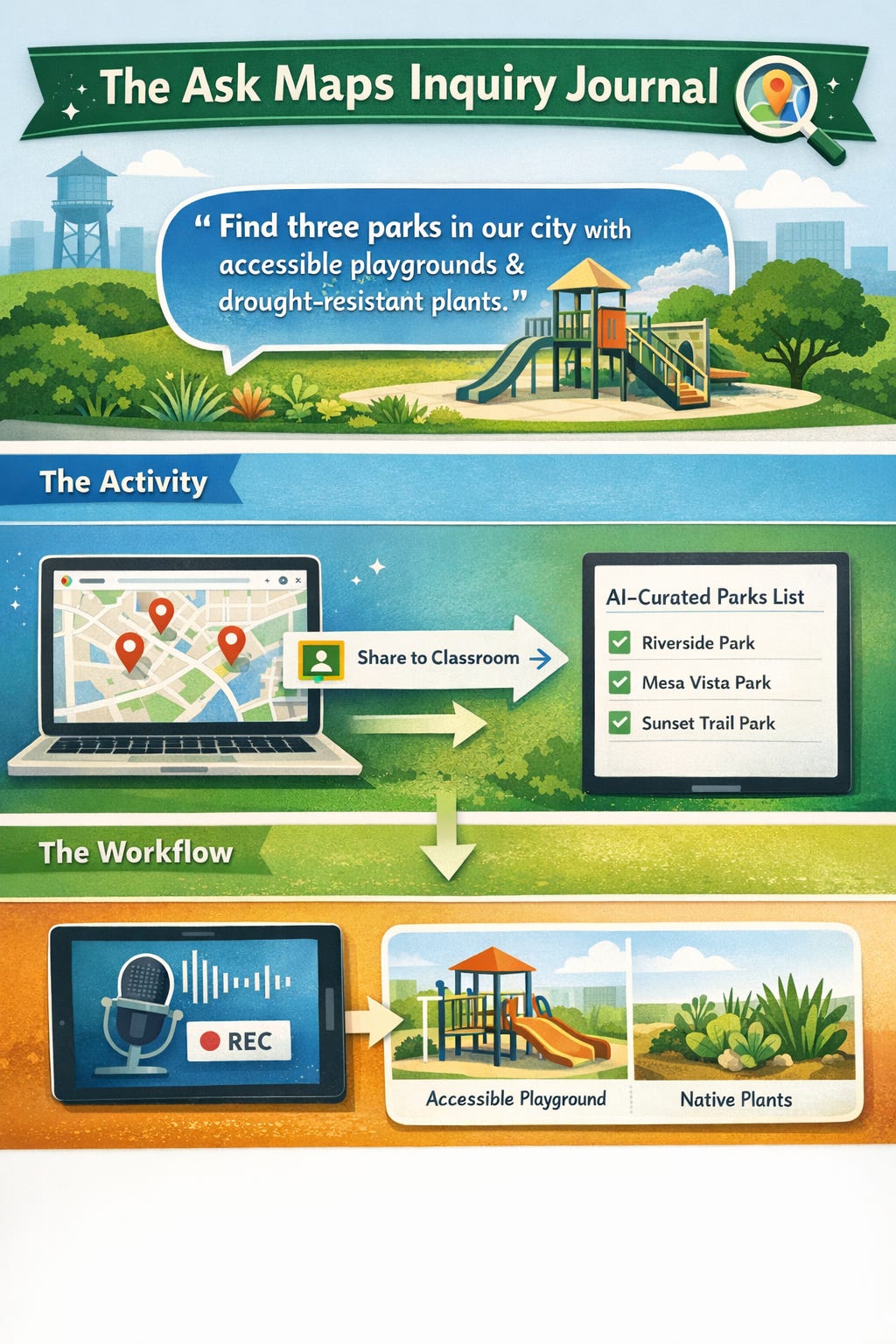
⏩ The Ask Maps Inquiry Journal
Instead of assigning a traditional worksheet, create a Google Classroom assignment where the instruction is a specific prompt for the new Ask Maps conversational AI.
The Activity: Ask students to use the prompt: “Find three public parks in our city that have both accessible playgrounds and native drought-resistant plants.”
The Workflow: Students use the Share to Classroom button directly from the Google Maps interface to attach their specific AI-curated results list to the assignment. They then use the new Audio Recording feature in Classroom to explain why those locations met the criteria, practicing both spatial and verbal reasoning.
⏩ Immersive History Time-Travel Reports
Use the Timelapse and Immersive View features to create a Change Over Time project.
The Activity: Assign a specific geographical region (e.g., the Amazon Rainforest or the Las Vegas Strip). Students must use the Timelapse slider to capture screenshots of the changes over the last 40 years.
The Workflow: In Google Classroom, provide a Google Slides template. Students embed their screenshots and use the Universal Annotations tool (new for 2026 Chromebooks) to draw directly over the map images, highlighting areas of deforestation or urban expansion.
⏩ Community No-Code GIS Mapping
Turn your students into local advocates by using My Maps integrated with Google Sheets.
The Activity: Students collect data on “Local Food Deserts” or “Bike Lane Safety” using a Google Form.
The Workflow: The form automatically populates a Google Sheet. In Google Classroom, the teacher provides a link to a master My Map. Students import the Sheet directly into the map. Because Google Maps now handles GeoJSON and KML natively without code, the map instantly updates with color-coded pins showing Risk Zones versus Safe Zones in their own neighborhood.
⏩ Virtual Field Trip: Choose Your Own Adventure
Use the Voyager stories in Google Earth but add a layer of accountability through interactive video questions.
The Activity: Assign a Google Earth Voyager (like The ABCs from Space).
The Workflow: Using the new 2026 AI-assisted Video Questions feature in Classroom, the teacher can embed Check for Understanding pauses. As the student “flies” to a new location in the tour, the video (or screen recording of the tour) pauses and asks: “Based on the 3D terrain you see here, why would a civilization choose to settle in this specific river bend?”
To assist you in maximizing the instructional use of the new Maps, I have created a Geospatial Project rubric as well as a series of subject-specific prompts. Take this link to view these resources. You can find additional ideas on the Google Earth Education Resources site, which provides specific classroom activities and guided Voyager stories that teachers can immediately link to their Google Classroom assignments.
Note: Keep in mind that your ability to fully utilize some of these strategies is dependent upon the type of Google account your district provides.
Final Thoughts
This is how much I like geography: When I was in my late 20s, I worked as a sports editor and feature writer for a large newspaper in Southern California. One year, I enrolled in a series of extended education courses in physical, cultural, and political geography at a nearby university. For fun.
Fast forward to the 12 years I spent as a classroom teacher in California. To my eternal horror, the California education code does not require a standalone geography class for high school students. Is it any wonder that, according to a National Geographic-Roper survey, about 11 percent of young American adults cannot locate the United States on a world map.
Anything, and I mean anything, that increases students’ comprehension of the physical world they live in is a gift to society. This new functionality added to Google Maps may not enable phoneless students to locate the country they live in, but I live in hope.
This work is licensed under a Creative Commons Attribution 4.0 International License (CC BY 4.0). You are free to share and adapt this material with attribution.